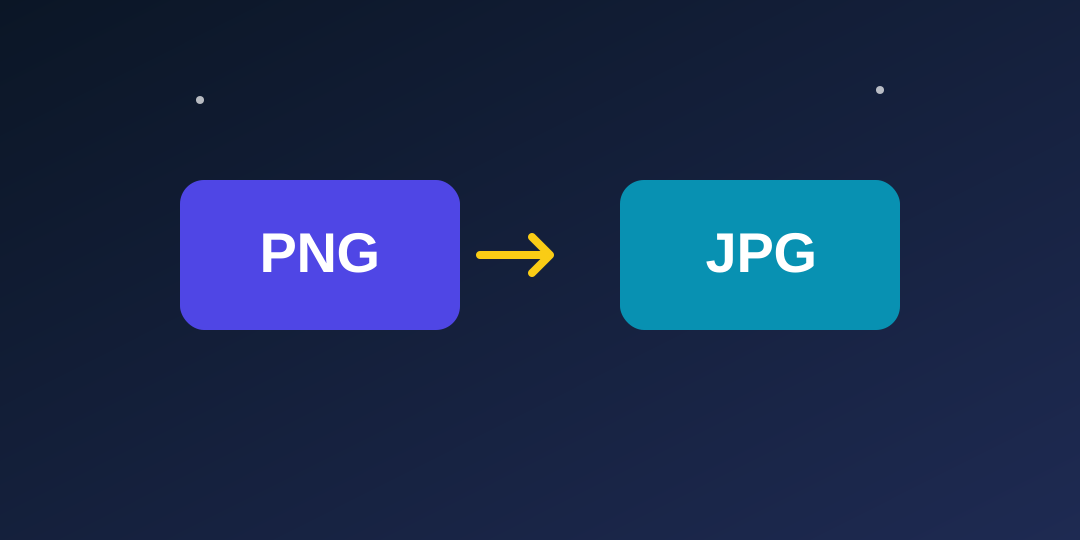
How to convert PNG to JPG
Converting a PNG to a JPG takes about ten seconds: open the PNG to JPG Converter, choose your PNG file, press Convert, and download the JPG. Nothing is uploaded and nothing is installed — the conversion runs in your browser. The reason most people do it is simple: the JPG comes out dramatically smaller, and it opens absolutely everywhere.
Why are PNG files so big?
PNG is lossless — it keeps every pixel exactly. That is wonderful for quality and terrible for file size. A screenshot or photo saved as PNG can easily be 3–5 MB, while the same image as a JPG at high quality is often 300–800 KB. For a single image that does not matter much. For a web page, an email attachment or a form with a size limit, it matters a lot.
JPG solves it with lossy compression: it throws away detail your eye barely notices. At 92% quality — the level the ToolFoxHub converter uses — a photo looks virtually identical to the PNG, at a fraction of the size. Sharp graphics and text can show slight artefacts around edges, but for photos and screenshots the difference is hard to spot even side by side.
When should you convert PNG to JPG?
Convert when a form, email or website rejects your file for being too big. “Image must be under 200KB” is the classic case, and PNG to JPG is usually the fastest fix — faster than resizing, and it keeps the full dimensions.
Convert when you are sharing photos or publishing on the web. Smaller files upload faster, pages load faster, and nobody can tell the difference at a glance.
Do not convert when you need transparency. JPG has no transparency channel, so transparent areas become white. If your image is a logo that must sit on different backgrounds, keep it as PNG. And do not convert graphics you plan to edit again and again — every JPG save loses a little more, while PNG saves lose nothing.
Step by step: PNG to JPG
- Open the PNG to JPG Converter. No sign-up, no download.
- Choose your PNG file. Any .png file from your device.
- Press Convert to JPG. Transparent areas become white, and the image is redrawn as a high-quality JPG.
- Download the JPG. It keeps the original name and pixel size, with a .jpg extension.
If the JPG is still too big for your form, open it in the Image Compressor afterwards — converting first and compressing second usually beats either step alone.
PNG to JPG for forms, email and the web
The most common reason people convert PNG to JPG is a size limit. School portals, job applications, visa forms and government websites often cap uploads at 100KB, 200KB or 500KB, and a PNG screenshot sails straight past those limits. Converting to JPG is the first thing to try, because it usually brings the file under the limit without changing the image dimensions at all — and most forms care about file size, not pixel size.
Email has the same problem in a different shape. A single PNG screenshot attached to an email is fine, but five of them can push the message over the attachment limit or make it slow to send and receive. Converting to JPG first keeps the email light, and the recipient sees the same image for all practical purposes.
Web pages benefit the same way. A page full of PNG screenshots loads slowly, and slow pages lose visitors — and, over time, search rankings. Bloggers and shop owners who convert their images to JPG before uploading usually see their pages load noticeably faster, with no visible change to the pictures themselves. The rule of thumb is simple: if the image is a photo or a screenshot and it will be viewed rather than edited, JPG is almost always the better format to publish.
Before you convert, one quick check saves trouble: if the PNG has a transparent background that matters — a logo, a watermark, an overlay — do not convert it to JPG, because the transparency will become white and the logo will look boxed in. Everything else is safe to convert, and the PNG to JPG Converter does it without uploading your file anywhere.
What if the JPG is still too big?
Sometimes converting alone is not enough — a large, detailed photo can still exceed a strict limit even as a JPG. When that happens, work in this order. First convert PNG to JPG, which usually cuts the size five to ten times. Then, if the file is still too big, compress the JPG with the Image Compressor, which reduces quality gradually until the size fits. Only if both steps fail should you shrink the dimensions (for example from 4000 pixels wide to 2000), because smaller dimensions are the one change you cannot undo. Following that order — convert, compress, resize — keeps the best possible quality at every size limit, and it works for almost every form, email and upload you will meet.
Frequently asked questions
What happens to transparency when converting PNG to JPG?
Transparent areas become white, because JPG cannot store transparency. If you need the transparent background, do not convert — keep the PNG.
Will the JPG look worse than the PNG?
For photos and screenshots, almost never noticeably: at 92% quality the detail loss is tiny. For sharp text and line graphics, look closely at edges — PNG is better there.
How much smaller will the JPG be?
It varies by image, but a photo PNG of 3–5 MB typically becomes a JPG of 300–800 KB — roughly five to ten times smaller.
Can I convert JPG back to PNG later?
Yes — the JPG to PNG Converter does the reverse, though it cannot restore detail the JPG compression already removed.
The bottom line
PNG to JPG is the quickest way to shrink an image without shrinking its dimensions: same pixels, far smaller file, opens everywhere. The PNG to JPG Converter does it in seconds, in your browser, without uploading anything. And if you need every format in one place, the All-in-One Image Tools page converts, compresses, resizes and crops as well.