How to convert WebP to PNG
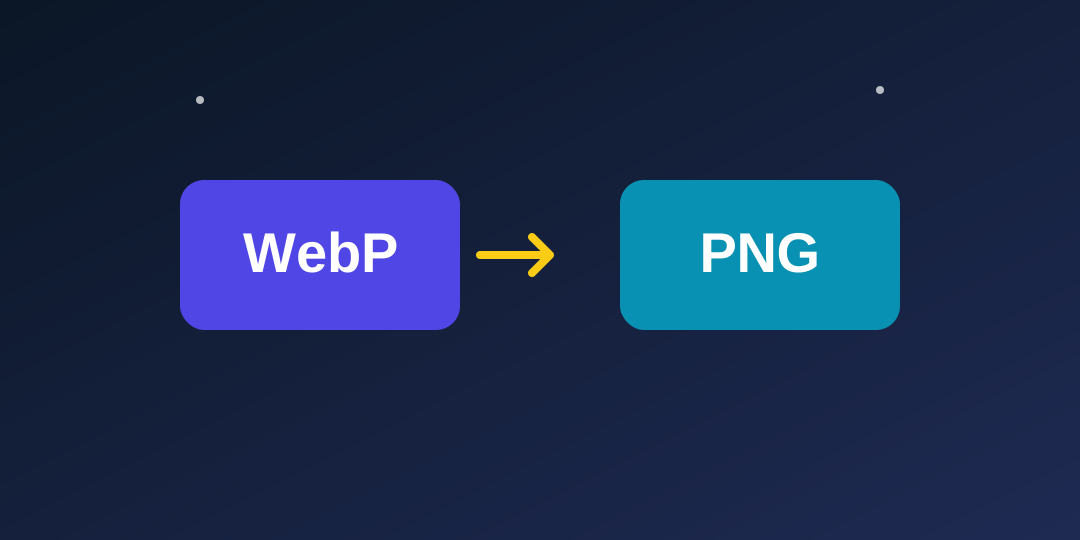
Converting a WebP to a PNG takes about ten seconds: open the WebP to PNG Converter, choose your WebP file, press Convert, and download the PNG. Nothing is uploaded and nothing is installed — the conversion runs in your browser. This guide explains what WebP is, why it sometimes will not open, and when PNG is the right target.
What is a WebP file?
WebP is an image format developed by Google. It compresses photos and graphics better than JPG and PNG, which is why websites love it: smaller image files mean faster pages, and faster pages rank better and keep visitors longer. That is why so many images you download from the web today arrive as .webp instead of .jpg or .png.
The trade-off is compatibility. WebP is newer than JPG and PNG, so older programs, some design tools, some upload forms and some office software still do not accept it. You download a perfectly good image, and then the program you want to use it in says it cannot open the file. Converting to PNG fixes that, because PNG has been universally supported for decades.
WebP vs PNG: what changes in the conversion?
| WebP | PNG | |
|---|---|---|
| Made by | Google (modern format) | Open standard (since the 1990s) |
| Compression | Lossy or lossless | Lossless |
| Transparency | Yes | Yes |
| Typical file size | Small | Large |
| Opens everywhere? | Mostly, but not always | Yes |
The important detail: PNG is lossless, so the conversion itself loses no quality — the PNG looks exactly like the WebP did. It will just be a larger file, because PNG does not compress as aggressively. And if your WebP had transparency, the PNG keeps it, since both formats support a transparency channel.
Step by step: WebP to PNG
- Open the WebP to PNG Converter. No sign-up, no download.
- Choose your WebP file. Any .webp file from your device.
- Press Convert to PNG. The image is redrawn as a PNG in your browser.
- Download the PNG. It keeps the original name and pixel size, with a .png extension.
If you need the smallest possible file instead of the most compatible one, convert to JPG with the WebP to JPG Converter — but note that JPG cannot keep transparency, so transparent areas become white.
Where do WebP files come from?
Most people meet WebP without ever choosing it. You search for an image, right-click, save it — and instead of the .jpg you expected, the file arrives as .webp. That is because the website served you its WebP version: modern websites keep two or three copies of every image and hand your browser the smallest one it supports, and for most browsers today that is WebP. You did nothing wrong; the website simply optimised for speed.
The same thing happens with images from social media, stock photo sites and online stores. The file you download is whatever the site chose to serve, and increasingly that is WebP. The confusion starts afterwards, when the image will not open in an older editor, will not upload to a form, or shows up as an unknown file type on your computer.
How can you tell a file is WebP? The simplest sign is the extension itself: .webp at the end of the file name. If extensions are hidden on your computer, the file’s properties or details panel will show “WEBP” as the type. And if an image refuses to open with a message about an unsupported format, WebP is the first suspect — especially if the image came from a website rather than from your own camera, since phone cameras still shoot in JPG or HEIC, not WebP.
Once you know the file is WebP, the fix is quick: convert it to PNG with the WebP to PNG Converter and the resulting file opens everywhere, with no quality lost in the process. There is no need to install anything, and no need to change any setting on the website that served the WebP — the conversion happens entirely on your side, in your browser.
PNG or JPG after converting from WebP?
Once you have decided to convert a WebP, the next question is which target to pick, and the answer depends on what happens next to the image. If the image will be edited again — cropped, filtered, layered with text — choose PNG, because every PNG save is lossless and your edits will not degrade the image. If the image will be uploaded, emailed or published, choose JPG, because the file will be far smaller and nothing will reject it. If the image has transparency you need to keep, the choice is made for you: only PNG keeps transparency, so JPG is not an option at all. When in doubt, convert to PNG first — you can always make a JPG from the PNG afterwards, but you cannot recover transparency once it has become white.
Frequently asked questions
Why will my WebP file not open?
Because the program you are using was built before WebP became common, or it only accepts JPG and PNG uploads. Converting to PNG solves it in every case, since PNG support is universal.
Does converting WebP to PNG lose quality?
No. PNG is lossless, so the converted image looks exactly like the original WebP. The only change is file size — the PNG will be larger.
Should I convert WebP to PNG or to JPG?
Choose PNG if you need transparency or plan to edit the image again. Choose JPG if you want the smallest file for sharing or uploading, and transparency does not matter.
Is the converter free and private?
Yes — like every tool on ToolFoxHub, it is free with no sign-up, and your image never leaves your device.
The bottom line
WebP is a great format for websites and a headache everywhere else. When a downloaded WebP will not open where you need it, converting to PNG is the safest fix: universal support, no quality loss, transparency kept. The WebP to PNG Converter does it in seconds, in your browser, without uploading anything.